How can we help?
About Bifu
Security and Compliance
Education and Support
Trading Guideline
Forex Community
How to set up Google Authentication
20/04/2026 08:57:22
Google Authenticator is critical for securing your account and digital assets. Even if malicious actors steal your password, they still need a secondary verification code from the authenticator app to access and operate your account, which greatly increases the difficulty of account hacking.Below is the Bifu Google Authenticator binding guide:
Step 1: Download Google Authenticator
- iOS: Search for 【Authenticator】on the App Store.
- Android: Search for 【Authenticator】on Google Play (your device must support Google services).

Step 2: Access Security Settings
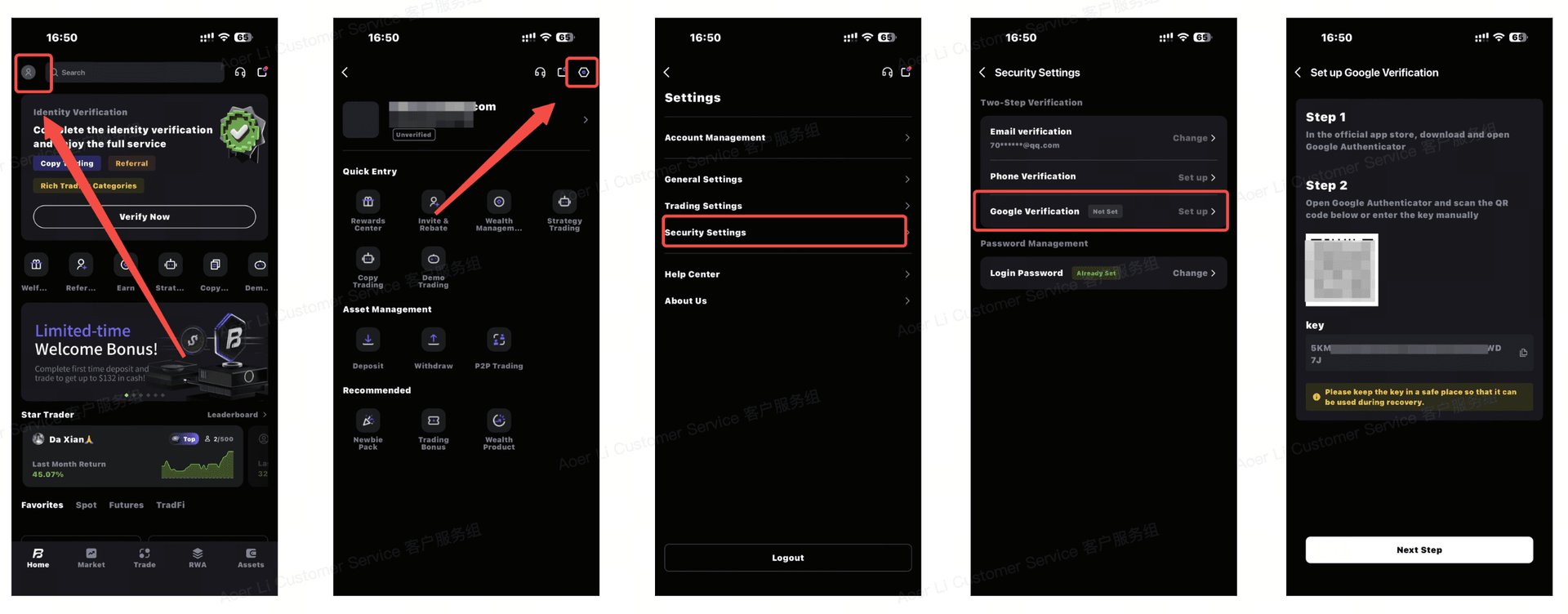
- Click the avatar in the upper left corner to enter the personal center.
- Tap the gear icon in the upper right corner to open Settings.
- Select Security Settings.
- Click 【Google Authenticator】to generate and copy your secret key.
Step 3: Complete Activation
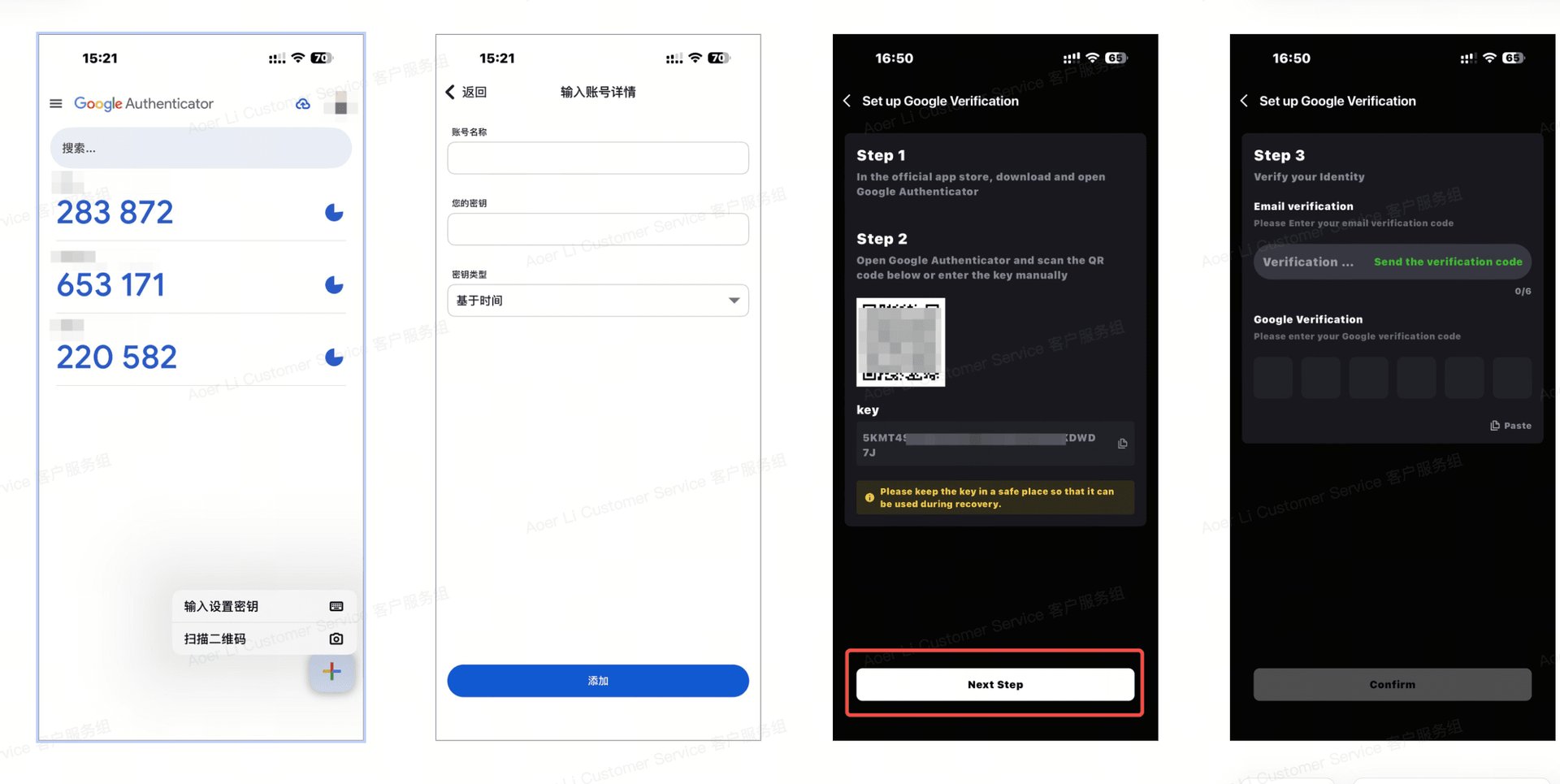
- Open the Google Authenticator app, tap the “+” icon, then choose Scan a QR code or Enter a setup key.
- Name your account, paste the copied secret key, then add the account.
- Go back to Bifu, click 【Next】, and enter the 6-digit dynamic code to finish binding.
Note: The verification code refreshes every 30 seconds. Please use the latest valid code.